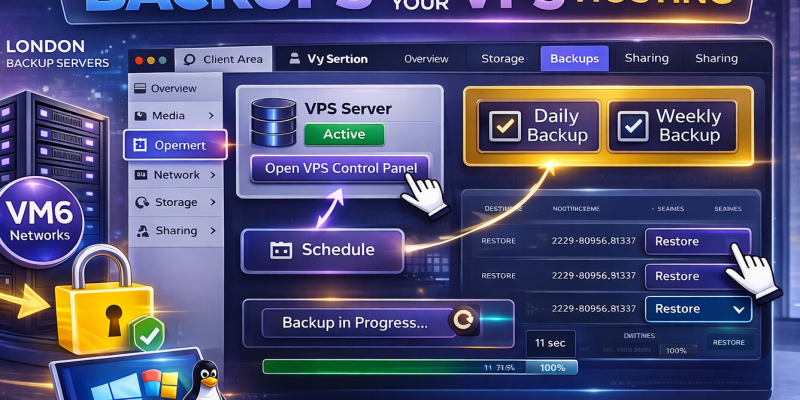
IMPORTANT: WE ENCOURAGE YOU TO ENABLE DAILY OR WEEKLY BACKUPS. IF YOU DO NOT DO THIS, WE CANNOT HELP IN DISASTER, CORRUPTION, OR DATA LOSS EVENT! ALL VPS COME WITH 1 FREE SNAPSHOT BACKUP INCLUDED!
This guide explains how to create and restore backups for your VPS using the control panel.
We strongly recommend using scheduled backups so your server is protected automatically. You can also create a manual backup at any time before making changes to your VPS.
Important: All backups are stored off-site on our backup servers in London, giving you an additional layer of protection in case of server or system issues.
Why VPS Backups Are Important
- Protect your files and server configuration
- Recover from mistakes or failed updates
- Restore your VPS quickly if something goes wrong
- Keep a copy of your data stored off-site
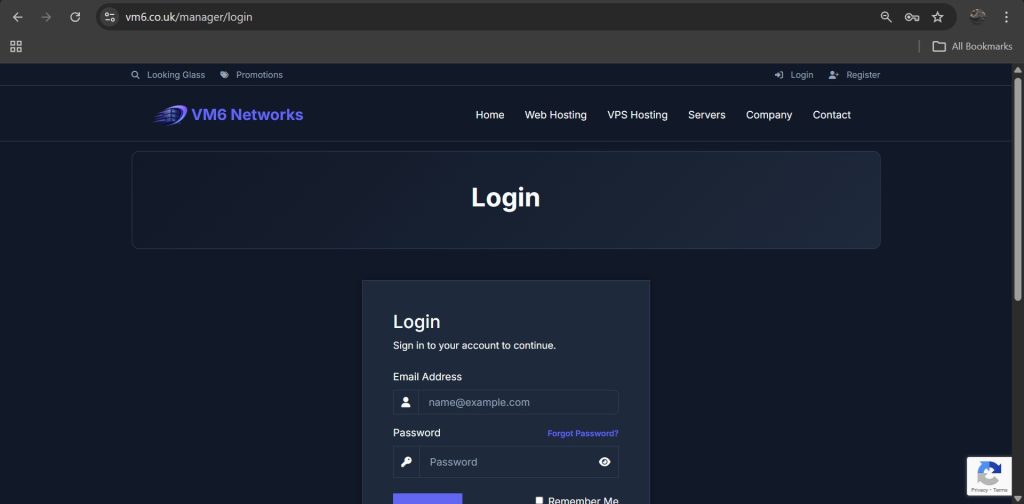
Step 1 — Login to the Client Area
- Open your browser
- Go to the VM6 client area
- Enter your login details
- Click Login
Step 2 — Open Your VPS Service
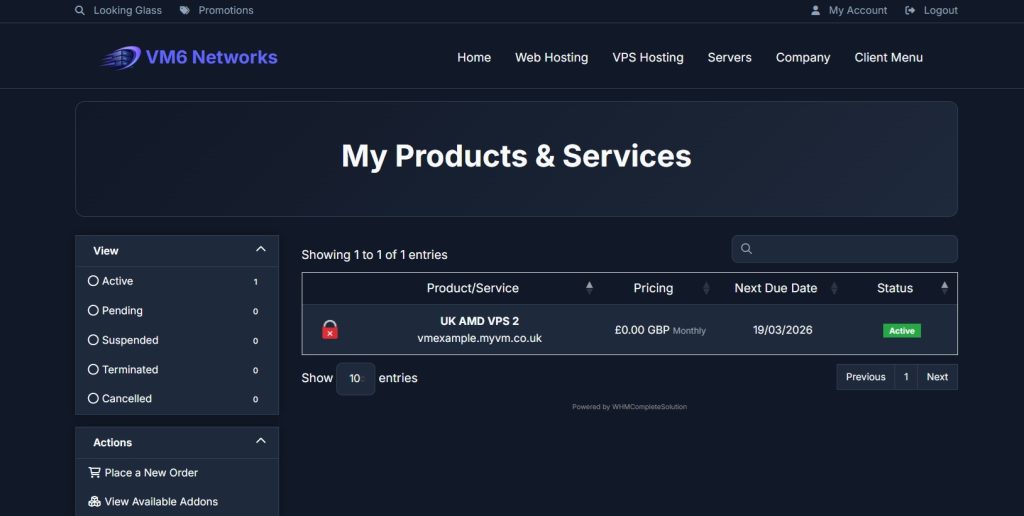
- Go to Client Menu
- Click My Services
- Select the VPS you want to manage
Step 3 — Open the VPS Control Panel
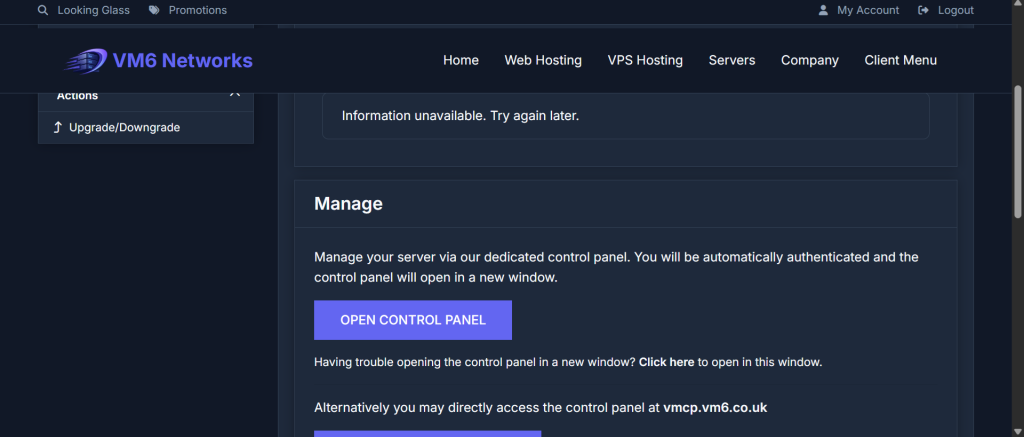
Once you are on your VPS service page:
- Click Open Control Panel
This will open the VirtFusion control panel for your VPS.
Step 4 — Open the Backups Tab
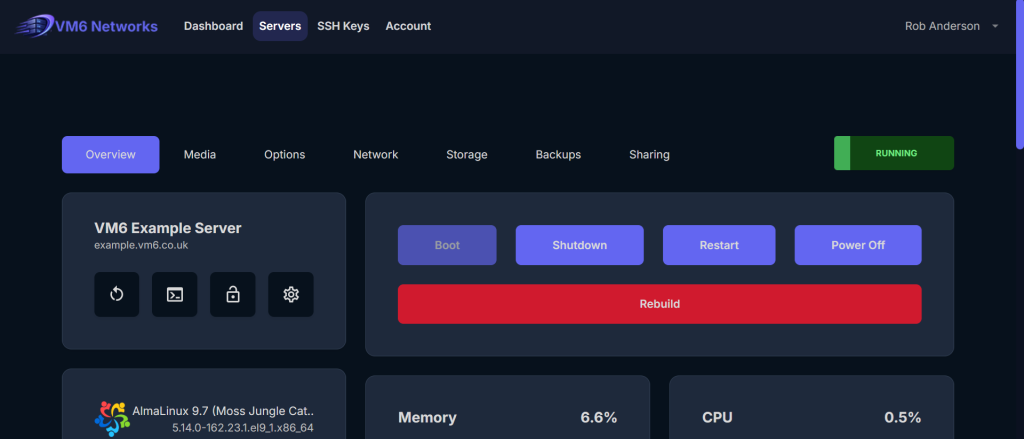
At the top of the VirtFusion control panel, you will see several tabs such as:
- Overview
- Media
- Options
- Network
- Storage
- Backups
- Sharing
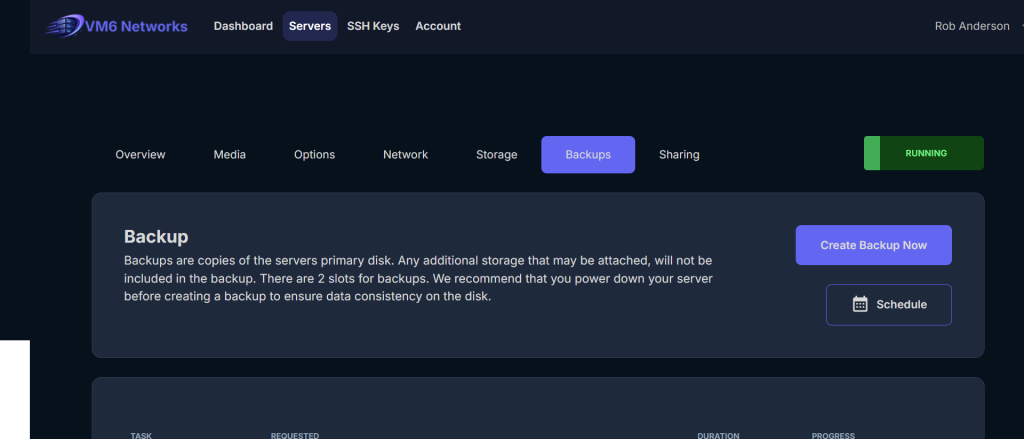
Click the Backups tab.
How to Set Up Scheduled Backups
Scheduled backups are recommended because they run automatically and give you regular restore points without needing to remember to create them manually.
Step 1 — Click Schedule
Inside the Backups tab, click the Schedule button.
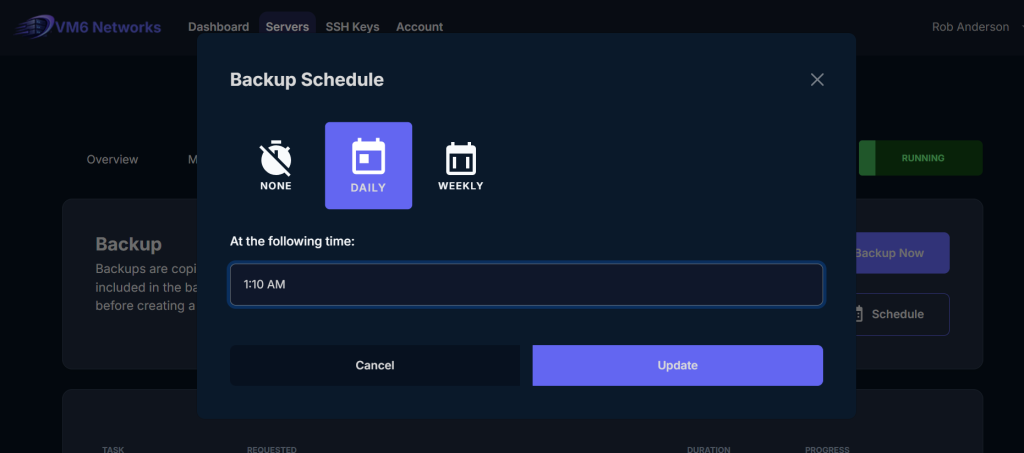
Step 2 — Choose Backup Frequency
You will be given the option to set how often backups should run.
Typical options include:
- Daily backups
- Weekly backups
Recommended:
- Use Daily if your VPS changes often
- Use Weekly if your VPS rarely changes
Step 3 — Save the Backup Schedule
- Select your preferred schedule
- Save or confirm the changes
Your VPS will now create backups automatically based on the schedule you selected. You will also be notified via email once each backup has been completed.
Tip: Scheduled backups are the best option for live websites, trading VPS, and production servers.
How to Create a Manual Backup
You can also create a manual backup at any time.
This is useful before:
- Installing software
- Updating your server
- Changing settings
- Making major website changes
Step 1 — Click Create Backup Now
Inside the Backups tab, click Create Backup Now.
Step 2 — Wait for the Backup to Complete
Your backup task will appear in the list below.
You will see information such as:
- Task name
- Date requested
- Duration
- Progress
- Status
Once finished, the status will show as Complete.
Important Notes About Backups
- Backups are copies of the server’s primary disk
- There are a limited number of backup slots available but you can purchase more.
How to Restore a VPS Backup
If you need to roll your VPS back to a previous working state, you can restore from one of your available backups.
Step 1 — Open the Backups Tab
- Login to the client area
- Open your VPS
- Click Open VPS Control Panel
- Open the Backups tab
Step 2 — Find the Backup You Want to Restore
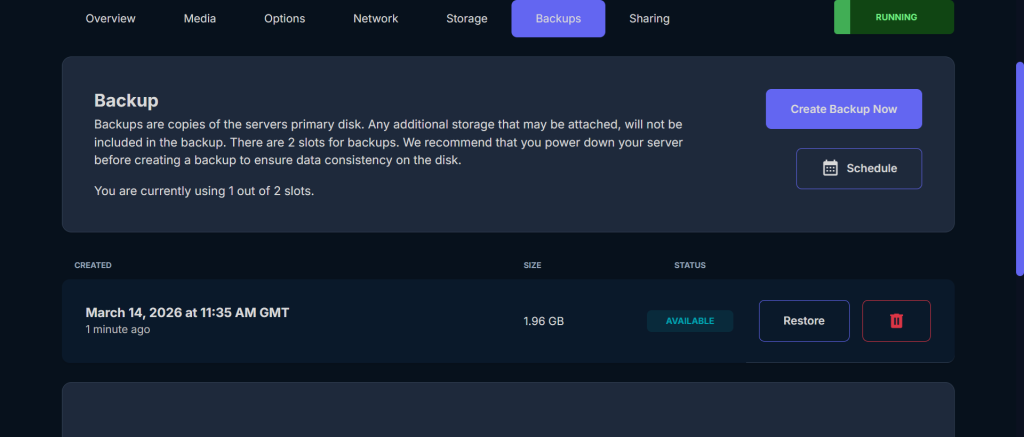
In the backup list, locate the restore point you want to use.
Choose the correct backup based on the date and time it was created.
Step 3 — Start the Restore
Click the Restore option for the backup you want to use, you will see a loading screen while it restores your backup. You will also be notified via email once it has completed.
Warning: Restoring a backup will overwrite your current VPS data with the selected backup.
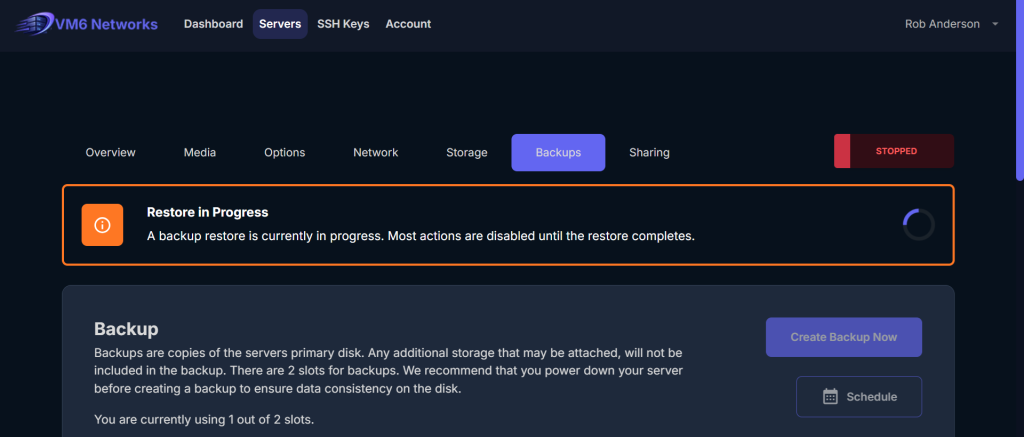
Step 4 — Wait for Restore to Finish
The restore process may take several minutes depending on the size of the backup.
Your VPS may reboot during the restore process. This is normal.
Best Practices
- Set up scheduled backups rather than relying only on manual backups
- Create a manual backup before major changes
- Check backup status regularly
- Keep more than one restore point when possible
Common Issues & Fixes
Backup Is Taking a Long Time
- Larger VPS disks take longer to back up
- Wait for the progress to complete
Restore Did Not Fix the Issue
- Try restoring an older backup
- If the issue continues, contact support
Summary
VirtFusion makes it easy to protect your VPS with both scheduled backups and manual backups. We recommend scheduled backups for the best protection, while manual backups are ideal before making major changes.
All backups are stored off-site on our servers in London, helping keep your data safe and recoverable if you ever need it.