This guide explains how to enable and access the VNC console for your VPS using the VirtFusion control panel. VNC allows you to connect to your server as if you were sitting directly in front of it.
This is especially useful if:
- Your VPS is not accessible via SSH or Remote Desktop
- You need to troubleshoot boot issues
- You need to access the server during installation
- You want direct console access to your VPS
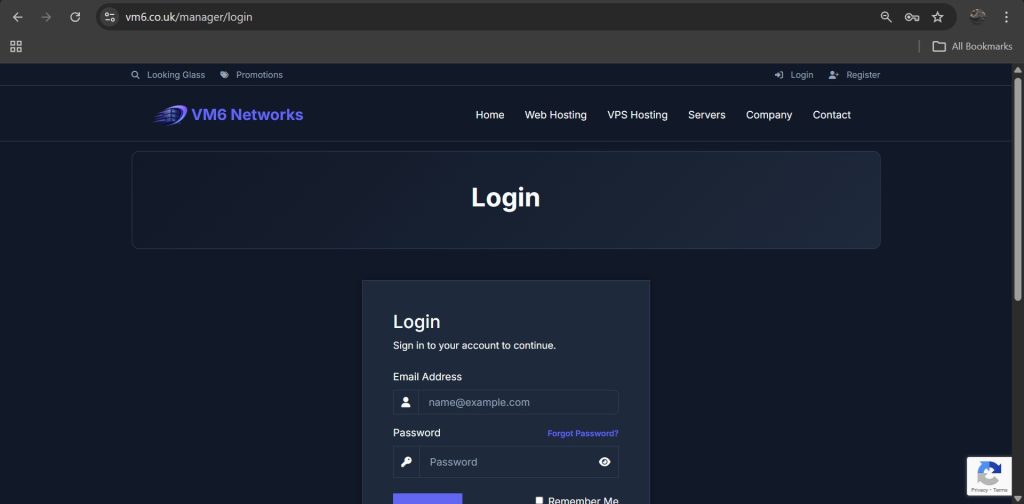
Step 1 — Login to the Client Area
- Open your browser
- Go to the VM6 client area
- Enter your account login details
- Click Login
Step 2 — Open Your VPS
- Go to Client Menu
- Select My Services
- Click your VPS service
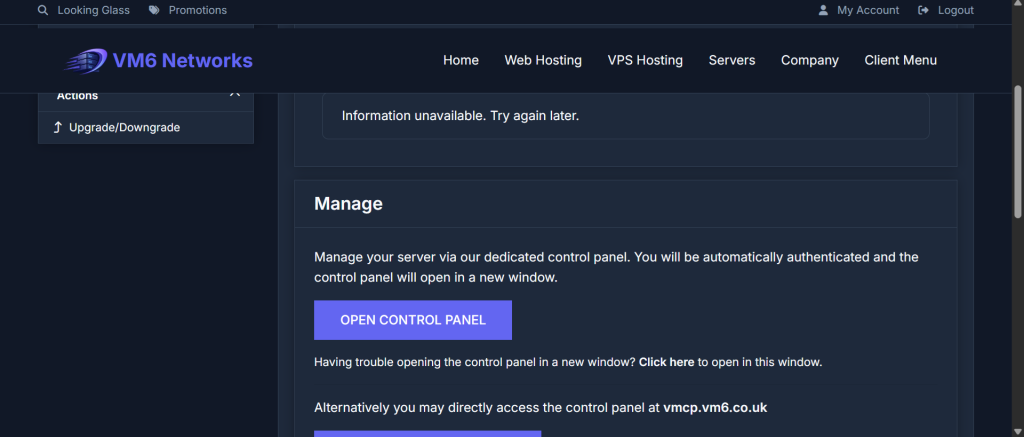
Step 3 — Open the VPS Control Panel
Inside your VPS service page, click the button:
Open VPS Control Panel
This will open the VirtFusion management interface for your VPS.
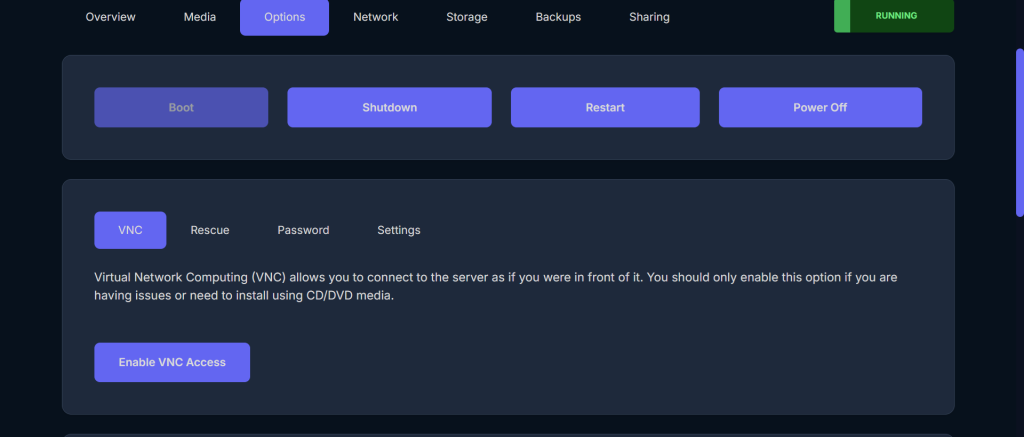
Step 4 — Go to the Options Tab
At the top of the VirtFusion control panel you will see several tabs:
- Overview
- Media
- Options
- Network
- Storage
- Backups
- Sharing
Click the Options tab.
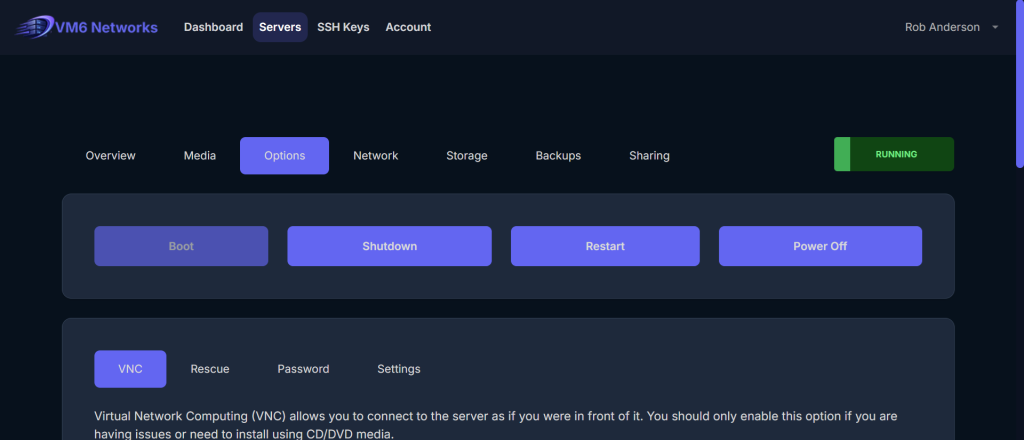
Step 5 — Enable VNC Access
Inside the Options section you will see the VNC control panel.
Click the button:
Enable VNC Access
This will generate a temporary VNC session for your server.
Step 6 — View the VNC Connection Details
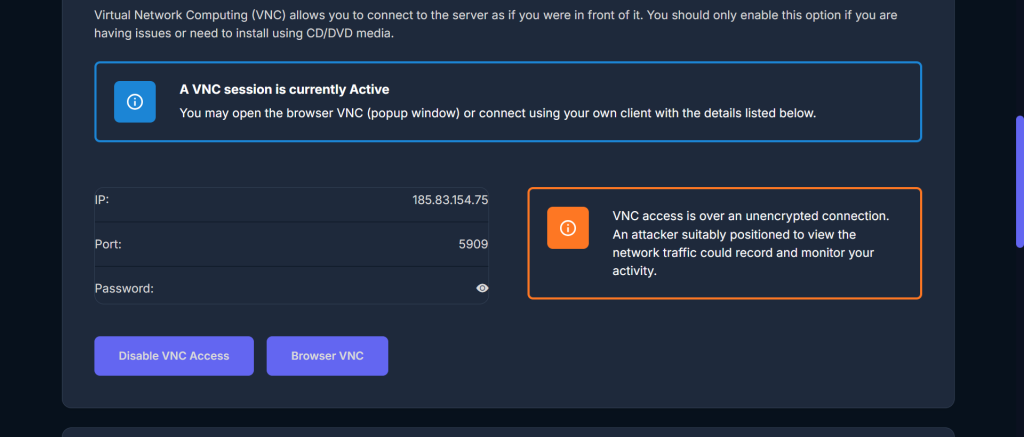
Once enabled, VirtFusion will display your VNC session information including:
- IP Address
- Port
- Password
You will also see two options:
- Browser VNC
- Disable VNC Access
Step 7 — Open Browser VNC
The easiest way to connect is using the built-in browser console.
- Click Browser VNC
- A new window will open
- Your VPS console will appear
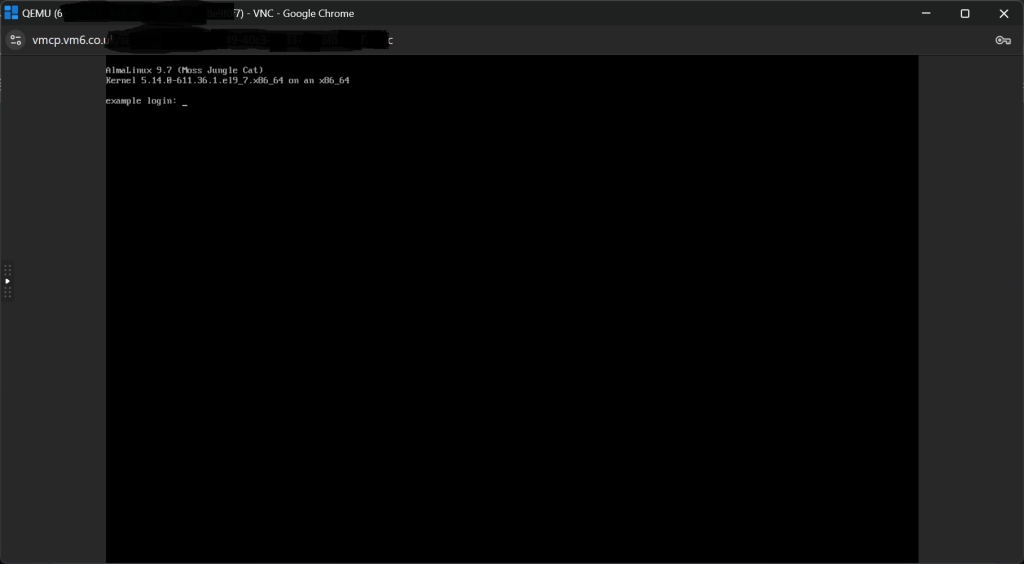
You now have full console access to your server.
What You Can Do with VNC
Using the VNC console you can:
- Access the server login screen
- Fix networking issues
- Recover from firewall lockouts
- Install operating systems
- Troubleshoot boot problems
This is the same as being physically connected to the server.
Security Notice
VirtFusion displays an important warning when enabling VNC:
VNC access is not encrypted.
This means someone on the network could potentially monitor the connection.
For this reason we recommend:
- Only enable VNC when needed
- Disable VNC access once finished
How to Disable VNC Access
Once finished using the console:
- Return to the Options tab
- Click Disable VNC Access
This closes the VNC session and improves security.
Common Issues & Fixes
Browser VNC Not Opening
- Allow browser popups
- Try another browser
- Refresh the VirtFusion panel
Black Screen
- Your VPS may still be booting
- Try restarting the server
Keyboard Not Working
- Click inside the VNC window
- Refresh the VNC session
Summary
VirtFusion makes it easy to access your VPS console using the built-in VNC feature. This provides a powerful recovery tool if your server becomes inaccessible via SSH or Remote Desktop.
Remember to disable VNC access once finished for better security.