This guide shows you how to access you VPS console directly from your browser using the HTML5 VNC viewer inside the VM6 Networks control panel. This allows you to control your server even if SSH or Remote Desktop is not working.
Important: Console access is like sitting in front of your linux or windows VPS physically. You can:
- Access BIOS
- Fix boot issues
- Recover locked servers
- Reset passwords
- Manage networking problems
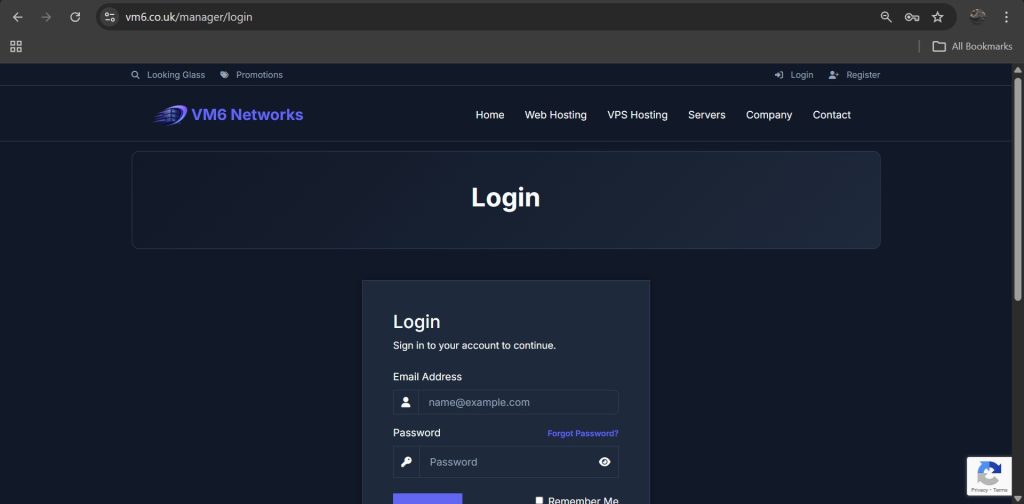
Step 1: Login to the VM6 Client Portal
- Open your browser
- Go to:
https://www.vm6.co.uk/manager/login
- Enter your login details
- Click Login
Step 2: Open Client Menu
Once logged in:
- Look at the top navigation bar
- Click Client Menu which will appear once logged in
- Select My Services from the drop down menu

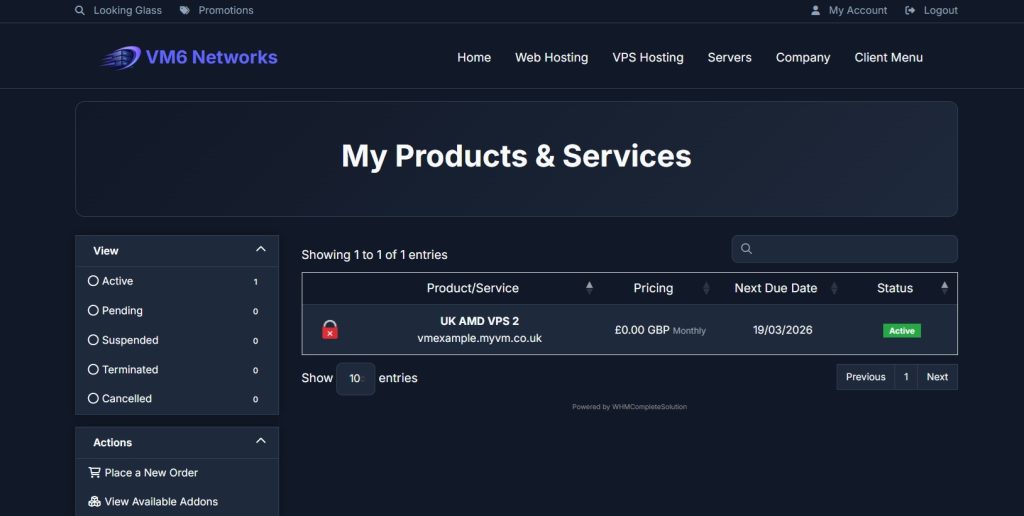
Step 3: Select Your VPS
On the My Services page you will see a list of your active services.
Important: Click anywhere on the VPS box of VPS your wish to select except the hostname.
The hostname link opens IP details instead of the control panel.
Step 4: Open VPS Control Panel
After clicking your VPS:
- Scroll down
- Wait for VPS Control Panel section to load
Note: This may take a few seconds depending on connection speed.

Step 5: Launch Browser Console (HTML5 VNC)
- Locate the icon that looks like a monitor screen like the picture above
- Click it
- Click the Launch VNC button

Step 6: Use the VPS Console
A new window will open displaying your VPS screen.
This console works exactly like sitting in front of a physical machine. You can:
- View boot screen
- Enter BIOS
- Fix boot errors
- Recover locked systems

Logging Into Windows via Console
If you’re accessing a Windows server, you may need to send the CTRL + ALT + DELETE command.
To do this:
- Look for the toolbar on the left side of the console window
- Click the Ctrl+Alt+Del icon
This will bring up the login screen.

Common Issues & Fixes
Console Not Loading?
- Disable popup blocker
- Allow browser popups
- Try another browser
Black Screen?
- Server may be powered off
- Try reboot from control panel
Keyboard Not Working?
- Click inside console window
- Refresh console session
When Should You Use VNC Console?
- RDP not connecting
- SSH broken
- Firewall misconfigured
- Network failure
- Password reset needed
- Server stuck booting
Security Tip
Always log out of the control panel after using console access, especially on shared or public devices.
Summary
The browser console is your emergency access method for your KVM VPS hosting. If your server becomes unreachable via normal methods, this tool ensures you always have full control.