Windows Firewall helps protect your VPS from unauthorized access. In this guide, you’ll learn how to open ports, allow programs, and create inbound rules in Windows Firewall.
What is Windows Firewall?
Windows Firewall (also called Windows Defender Firewall) controls incoming and outgoing network traffic based on security rules. By default, it blocks most unsolicited inbound connections.
Common reasons to allow connections:
- Allow RDP (Port 3389)
- Allow a web server (Port 80 or 443)
- Allow a custom application
- Open a custom port
How to Open Windows Firewall
Step 1:
- Press Windows Key
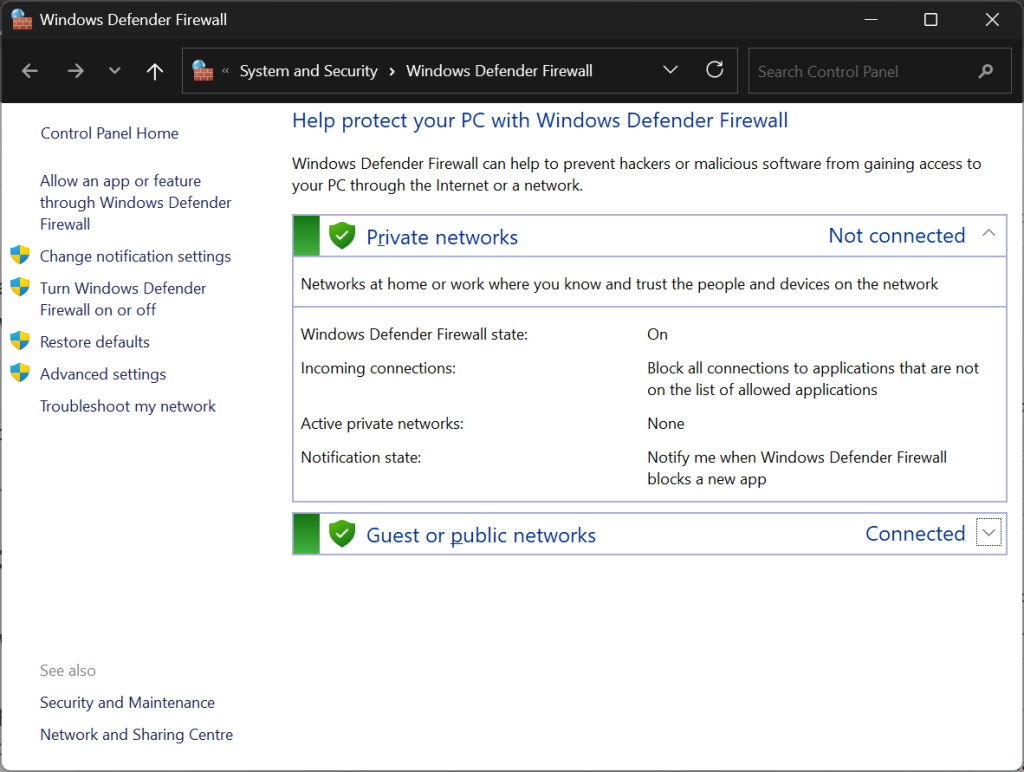
- Search for Windows Defender Firewall
- Click to open it
Method 1: Allow a Specific Program Through Firewall
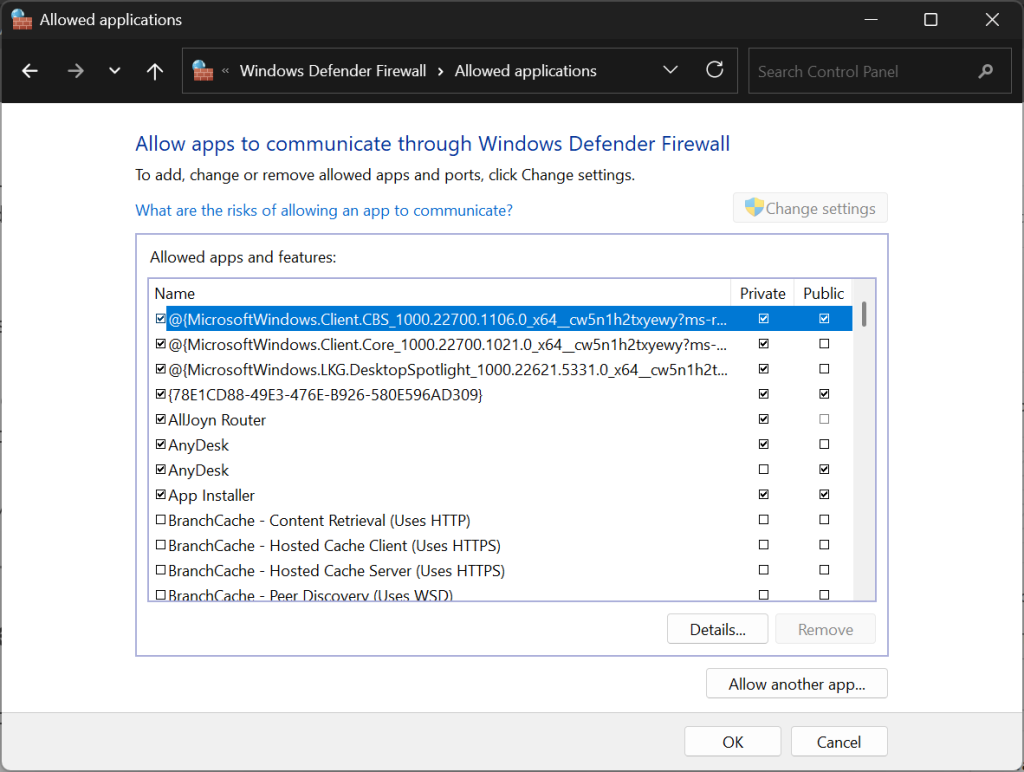
Step 1: Open Allowed Apps
- Click Allow an app or feature through Windows Defender Firewall
- Click Change Settings
Step 2: Allow the Application
- Find the application in the list
- Check Private and/or Public
- Click OK
If the program is not listed:
- Click Allow another app
- Browse and select the program
Method 2: Open a Port (Create Inbound Rule)
This is required for web servers, game servers, or custom software.
Step 1: Open Advanced Firewall Settings
- Open Windows Defender Firewall
- Click Advanced settings (left side)
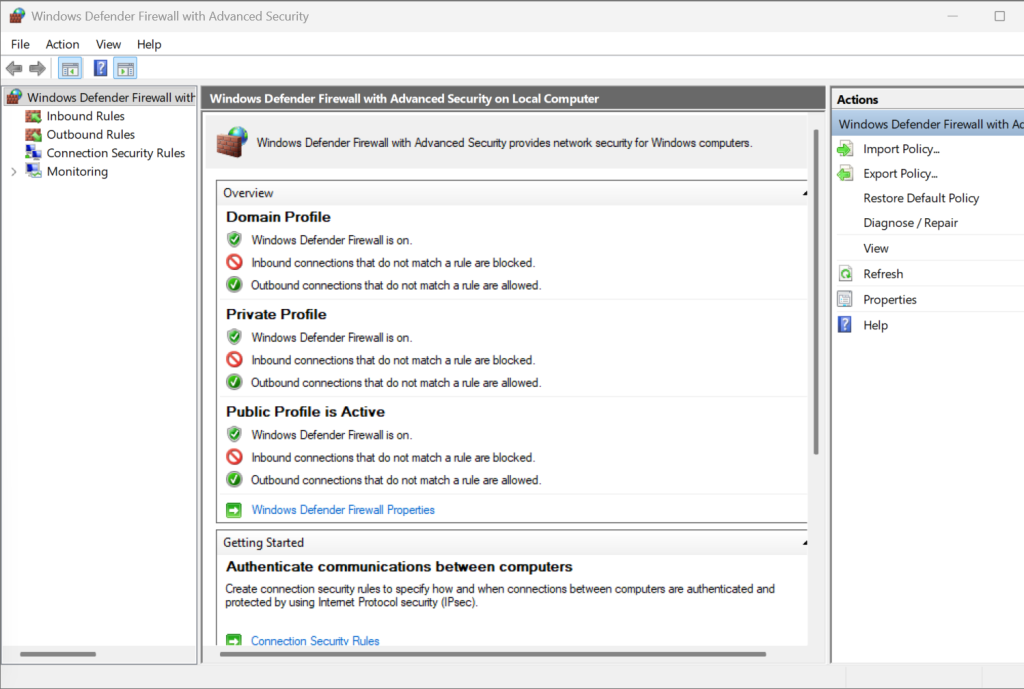
Step 2: Create New Inbound Rule
- Click Inbound Rules
- Click New Rule
Step 3: Choose Rule Type
- Select Port
- Click Next
Step 4: Specify Port Number
- Select TCP or UDP
- Choose Specific local ports
- Enter your port number (example: 80, 443, 3389)
- Click Next
Step 5: Allow the Connection
- Select Allow the connection
- Click Next
Step 6: Apply to Profiles
- Check Domain
- Check Private
- Check Public
- Click Next
Step 7: Name the Rule
- Enter a name (example: “Allow Port 8080”)
- Click Finish
Your port is now open.
How to Allow RDP (Port 3389)
Most Windows VPS servers already allow RDP. If not:
- Create a new inbound rule
- Select TCP
- Enter port 3389
- Allow the connection
⚠ Important: For security, consider restricting RDP access to your IP address only.
How to Block a Port
To block a port instead:
- Create a new inbound rule
- Select Port
- Enter the port number
- Select Block the connection
Verify Open Ports Using Command Prompt
- Open Command Prompt as Administrator
- Type:
netstat -an
Look for your port listed as LISTENING.
Security Best Practices
- Only open ports you absolutely need
- Close unused ports immediately
- Use strong passwords
- Restrict RDP by IP if possible
- Regularly review firewall rules
Common Issues
Port Still Closed?
- Check if the application is running
- Verify the correct TCP/UDP protocol
- Confirm your VPS provider does not have an external firewall blocking it
Connection Refused?
- The service may not be listening on that port
- Firewall rule may be misconfigured
You’re All Set 🎉
You now know how to configure Windows Firewall, allow connections, and open ports on your VPS. If you need help securing your server properly, our support team is here to assist.