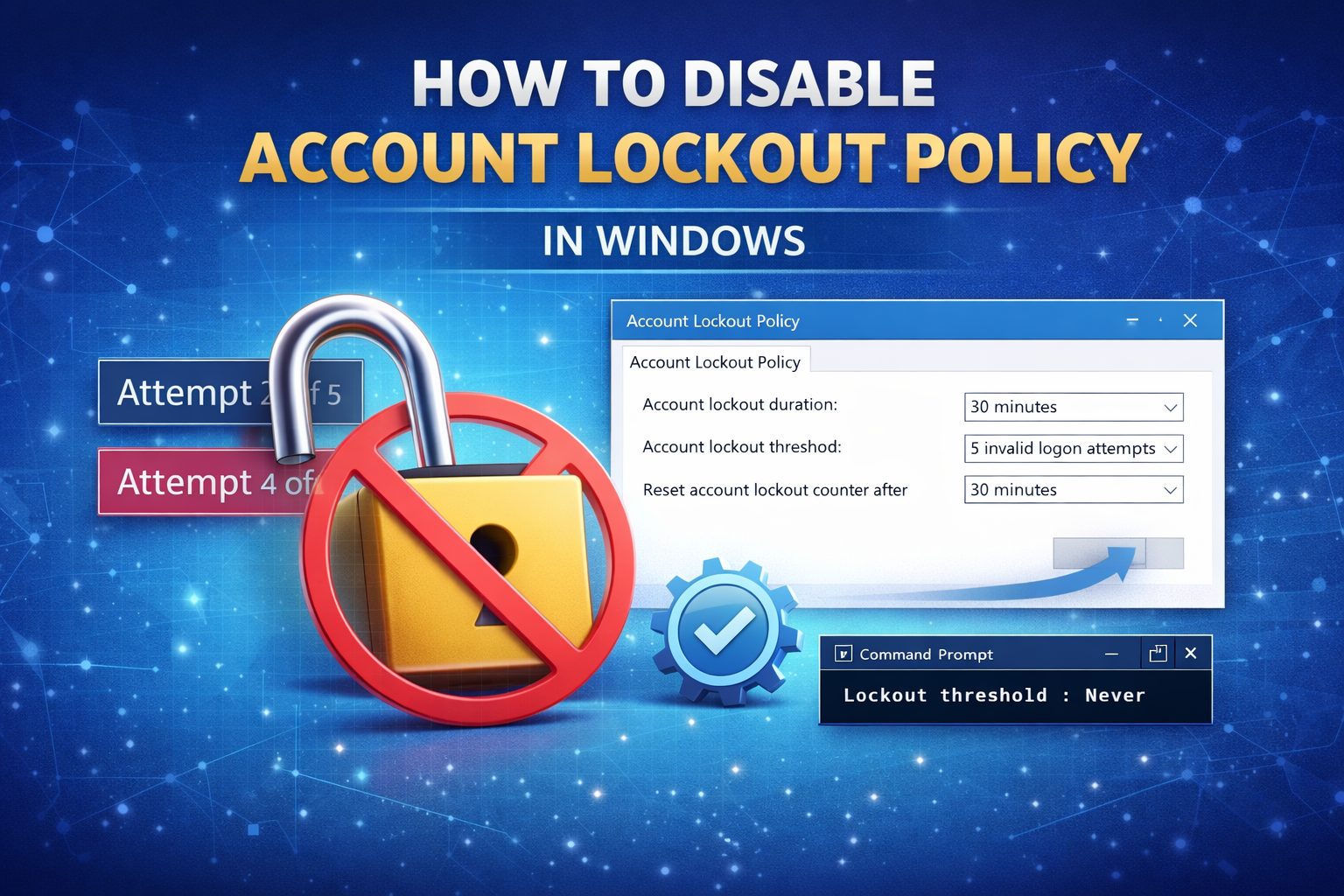
If you are using a Windows VPS, you may experience account lockouts after multiple failed login attempts. This guide will show you how to disable the Account Lockout Policy in Windows Server.
⚠ Warning: Disabling account lockout reduces security. Only do this if you understand the risks.
What is Account Lockout Policy?
The Account Lockout Policy automatically locks a user account after a specified number of failed login attempts. This helps protect against brute-force attacks.
By default, many Windows Server versions enable this feature.
Method 1: Disable Account Lockout Using Local Security Policy
Step 1: Open Local Security Policy
- Press Windows Key + R
- Type secpol.msc
- Press Enter

Step 2: Navigate to Account Lockout Policy
- Click Account Policies
- Click Account Lockout Policy
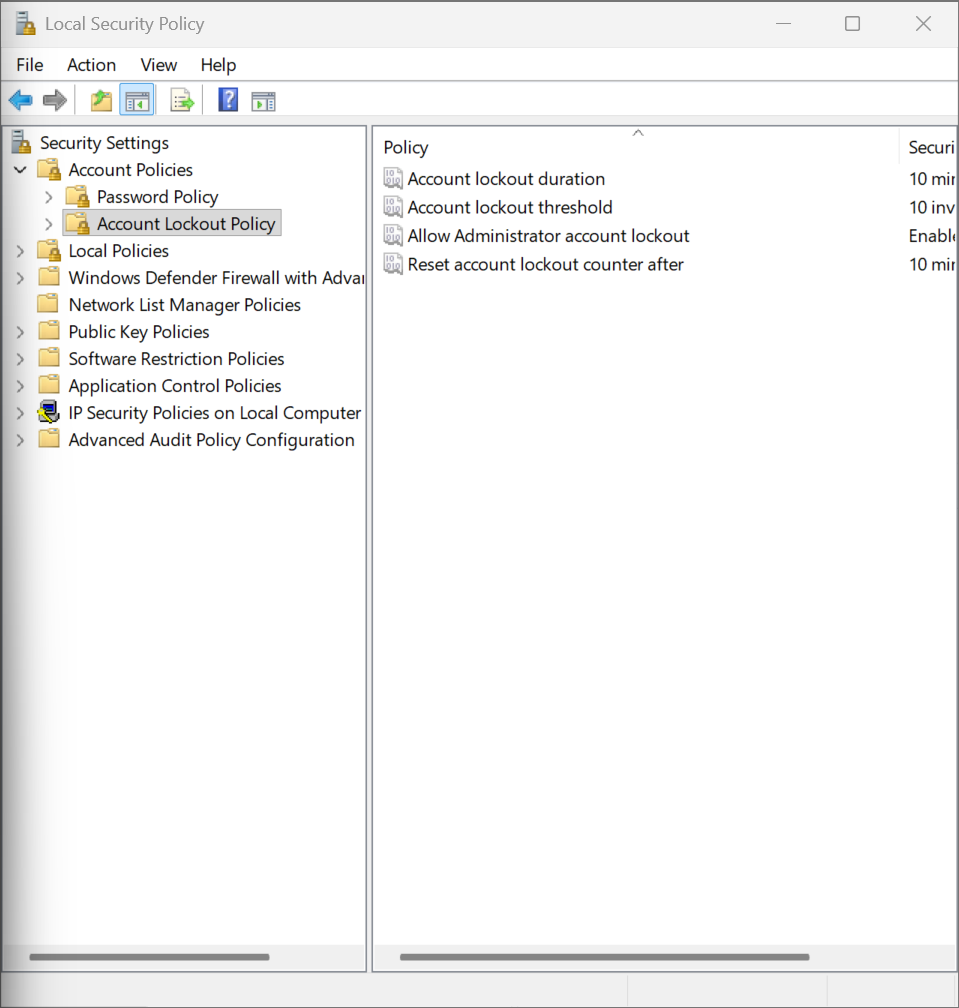
Step 3: Modify Lockout Settings
You will see three settings:
- Account lockout duration
- Account lockout threshold
- Reset account lockout counter after
To Disable Lockout:
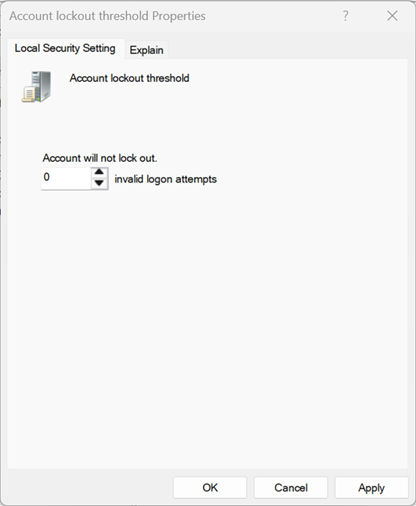
- Double-click Account lockout threshold
- Set the value to 0
- Click OK
Setting the threshold to 0 disables account lockout completely.
Method 2: Disable Account Lockout Using Group Policy Editor
This method is useful on some Windows Server editions.
Step 1: Open Group Policy Editor
- Press Windows Key + R
- Type gpedit.msc
- Press Enter
Step 2: Navigate to Policy Location
Go to:
Computer Configuration → Windows Settings → Security Settings → Account Policies → Account Lockout Policy
Step 3: Set Account Lockout Threshold to 0
Double-click Account lockout threshold and change the value to 0.
Verify the Policy is Disabled
- Open Command Prompt as Administrator
- Type:
net accountsLook for:
Lockout threshold: Never
If it shows Never, the policy is successfully disabled.
Alternative (Recommended) Secure Configuration
Instead of disabling lockout completely, consider:
- Setting lockout threshold to 10 attempts
- Setting duration to 5–15 minutes
- Changing the default Administrator username
- Using a strong password (12+ characters)
- Restricting RDP access by IP via Firewall
Common Issues
Policy Keeps Reverting?
- You may be on a domain-joined server
- Domain Group Policy may override local settings
secpol.msc Not Found?
- You may be using a Windows edition that does not include Local Security Policy
You’re Done 🎉
Your Windows Server account lockout policy is now disabled. If you need help securing your VPS properly, contact our support team.