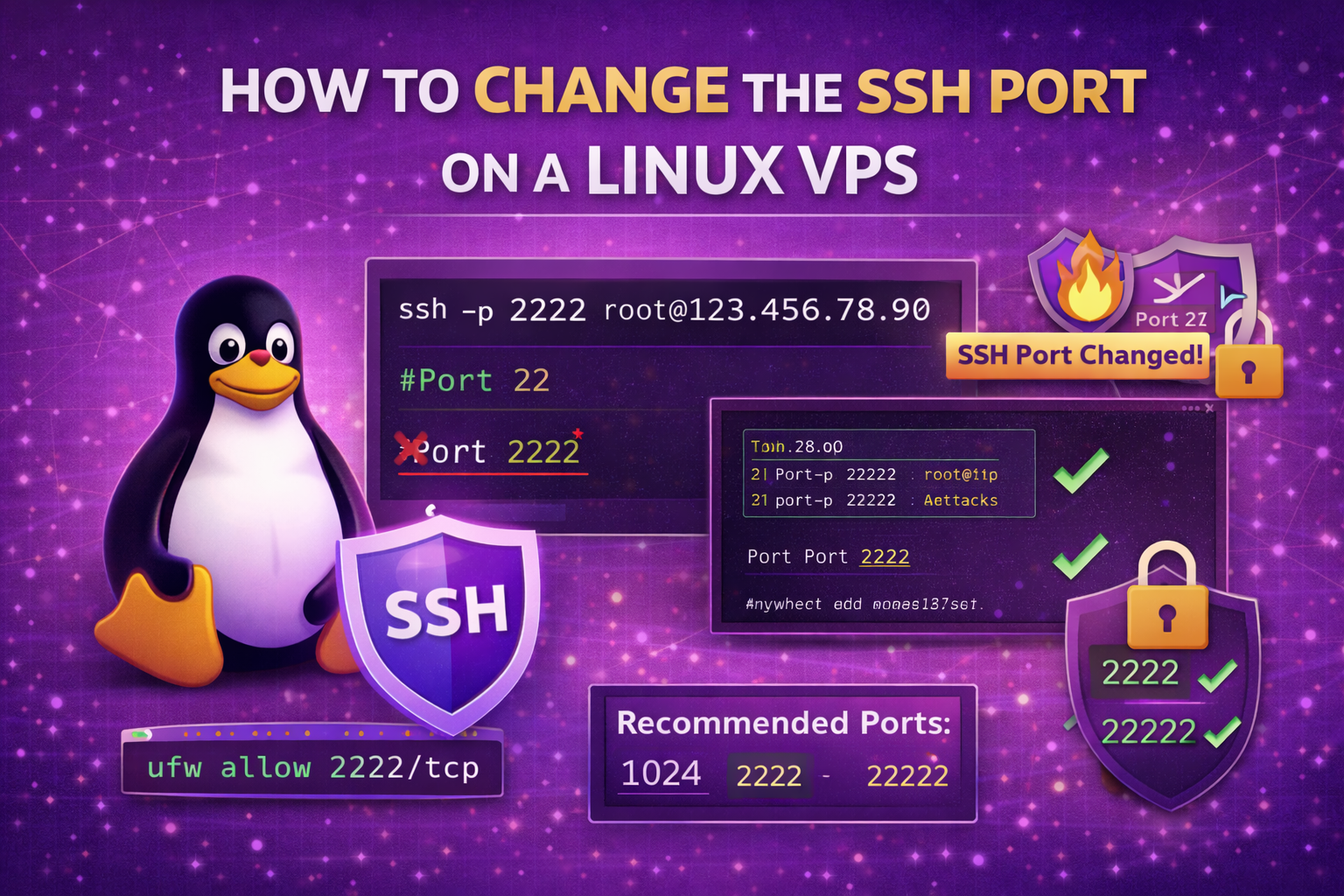
By default, SSH runs on port 22. Changing the SSH port helps reduce automated brute-force attacks and improves server security. In this guide, you’ll learn how to safely change your SSH port on a Linux VPS.
⚠ Important: Follow this guide carefully. Changing the SSH port incorrectly may lock you out of your server.
Step 1: Connect to Your Server via SSH
ssh root@your-server-ip
Step 2: Allow the New Port in Your Firewall FIRST
Do this before changing SSH settings!
If using UFW:
ufw allow 2222/tcp
(Replace 2222 with your desired new port.)
If using firewalld:
firewall-cmd --permanent --add-port=2222/tcp
firewall-cmd --reload
Step 3: Edit the SSH Configuration File
Open the SSH configuration file:
nano /etc/ssh/sshd_config
Find this line:
#Port 22
Remove the # and change it to:
Port 2222
Make sure there is only ONE “Port” line active.
Save and exit:
- Press CTRL + X
- Press Y
- Press Enter
Step 4: Restart SSH Service
For Ubuntu/Debian:
systemctl restart ssh
For CentOS/RHEL:
systemctl restart sshd
Step 5: Test the New SSH Port (Do NOT Close Current Session)
Open a new terminal window and test:
ssh -p 2222 root@your-server-ip
If it connects successfully, your new port works.
Only close your old SSH session after confirming the new port works.
Optional: Disable Port 22 Completely
After confirming the new port works:
If using UFW:
ufw delete allow 22/tcp
Recommended Additional SSH Security Settings
While editing /etc/ssh/sshd_config, consider:
Disable Root Login
PermitRootLogin no
Disable Password Authentication (Use SSH Keys Only)
PasswordAuthentication no
Limit Specific Users
AllowUsers yourusername
Common Issues & Fixes
Connection Refused?
- Firewall may not allow new port
- SSH service not restarted
Permission Denied?
- Incorrect username
- SSH key misconfigured
Locked Out?
- Use your VPS provider console access
- Revert the port in
sshd_config - Restart SSH
Best Port Numbers to Use
Avoid very common ports. Choose something between:
- 1024 – 65535
- Example: 2222, 2200, 22222
You’re All Set 🚀
You’ve successfully changed your SSH port and improved your Linux VPS security. For even better protection, consider installing Fail2Ban and using SSH keys only.