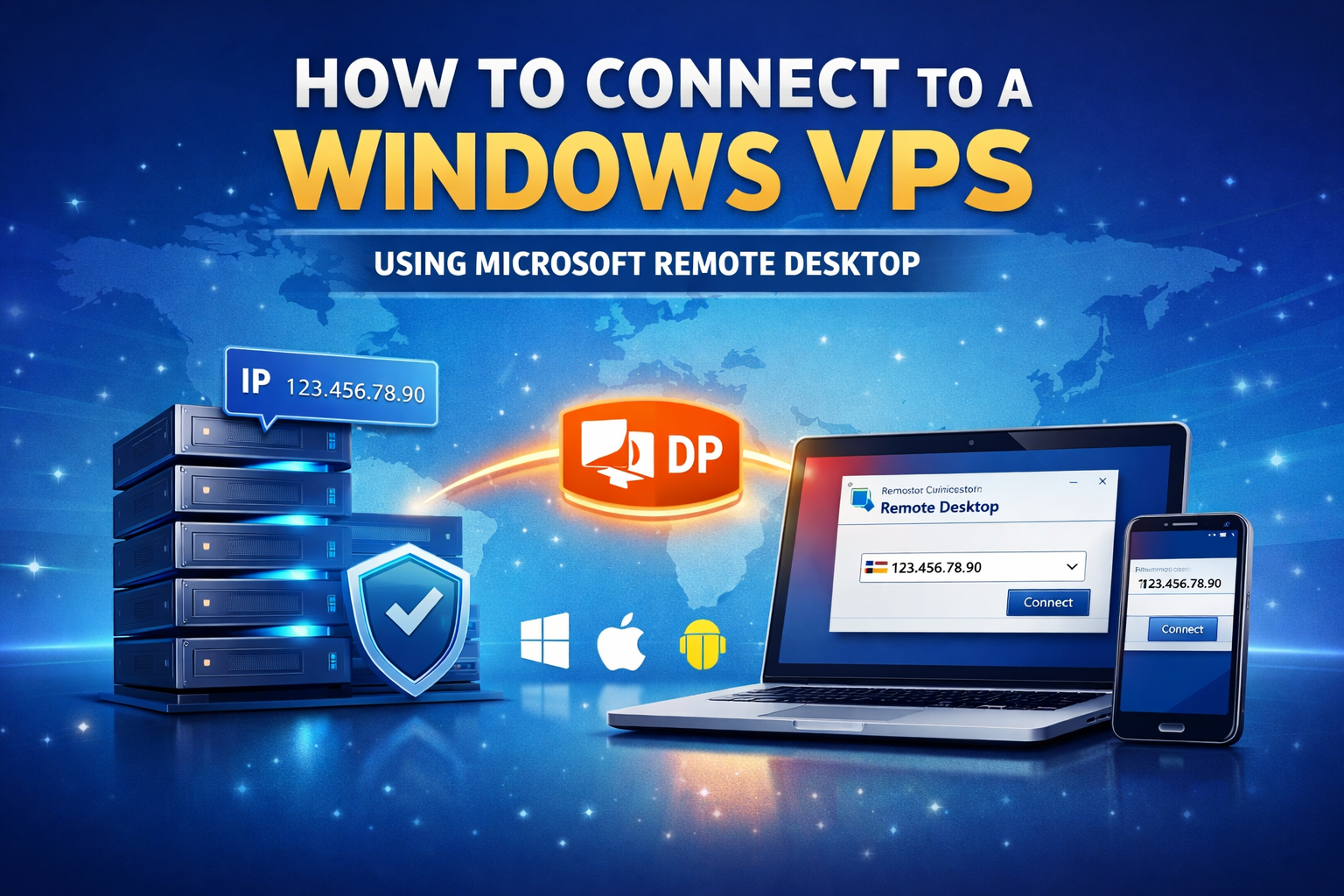
If you have purchased a Windows VPS, you can access it using Microsoft Remote Desktop (RDP). This guide will walk you through the step-by-step process to connect from Windows, Mac, Android, and iPhone.
📋 Before You Start
Make sure you have the following details from your VPS welcome email:
- IP Address
- Username (usually Administrator)
- Password
How to Connect from Windows PC
Step 1: Open Remote Desktop Connection
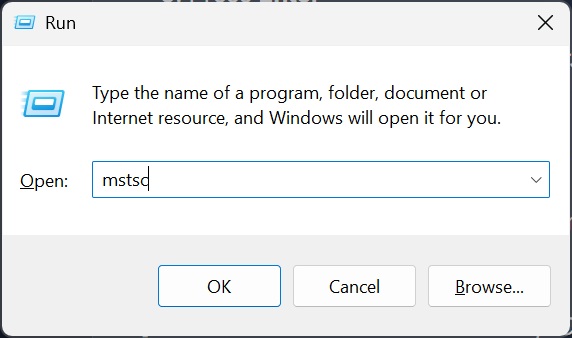
- Press Windows Key + R
- Type mstsc
- Press Enter
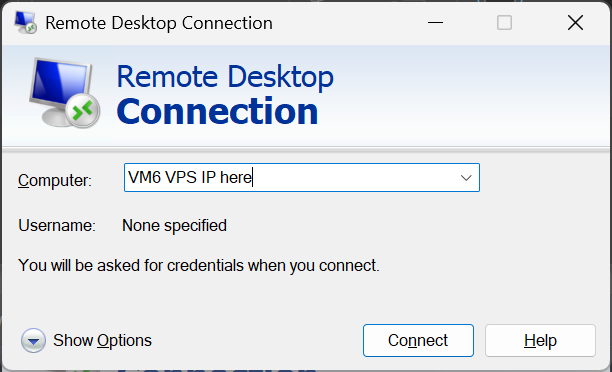
Step 2: Enter Your VPS IP Address
- In the Remote Desktop window, enter your VPS IP address
- Click Connect
Step 3: Enter Login Credentials
- Username: Administrator (or the username provided)
- Password: Enter the password from your welcome email
- Click OK
Step 4: Accept Security Certificate
You may see a security warning. This is normal for first-time connections.
- Check “Don’t ask me again” (optional)
- Click Yes
You are now connected to your Windows VPS 🎉
How to Connect from Mac
Step 1: Download Microsoft Remote Desktop
Download the app from the Mac App Store (search for “Microsoft Remote Desktop”).
Step 2: Add a New PC
- Open the app
- Click Add PC
- Enter your VPS IP address
Step 3: Enter Credentials
- Enter Username and Password
- Click Connect
How to Connect from Android or iPhone
Step 1: Install the App
Download Microsoft Remote Desktop from:
- Google Play Store (Android)
- Apple App Store (iPhone/iPad)
Step 2: Add Your VPS
- Tap +
- Select Add PC
- Enter your VPS IP address
Step 3: Login
- Enter Username
- Enter Password
- Tap Connect
Common Connection Issues & Fixes
❌ Remote Desktop Can’t Connect
- Check your IP address is correct
- Ensure your VPS is powered ON
- Make sure port 3389 is open
❌ Wrong Password Error
- Re-copy password carefully
- Make sure CAPS LOCK is off
Security Tips
- Change your Administrator password after first login
- Use a strong password (12+ characters)
- Consider changing the default RDP port (advanced users)
- Enable Windows Firewall
You’re All Set!
Your Windows VPS is now ready to use. If you experience any issues, contact our support team and we’ll be happy to help.