On this page
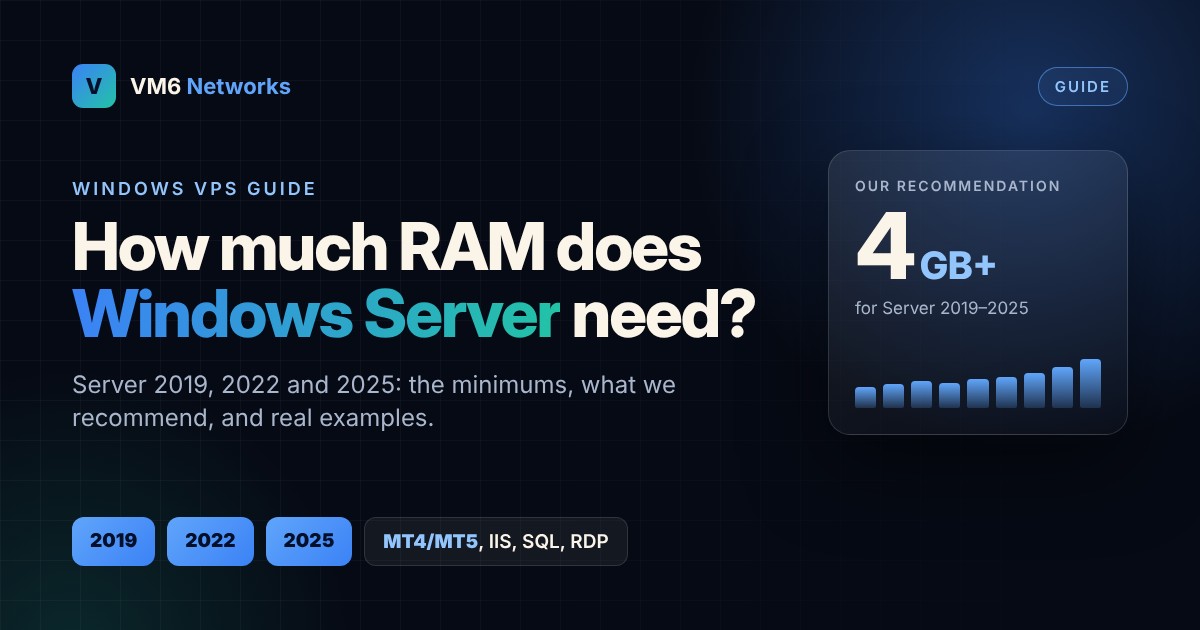
“How much RAM do I need for a Windows VPS?” is one of the questions we get asked most. The honest answer is more than Microsoft’s minimum. The official figures are the least Windows needs to install and boot. They aren’t what it needs to run smoothly with your software on top.
In this guide we cover Windows Server 2019, 2022 and 2025: Microsoft’s minimums, what we actually recommend, and some real-world examples of how much memory common setups use.
Microsoft’s official minimums
Windows Server comes in two installation options. Desktop Experience is the full Windows desktop you see over Remote Desktop, and it’s what almost everyone on a VPS uses. Server Core has no desktop and is managed from the command line or remotely.
| Version | Desktop Experience (minimum) | Server Core (minimum) | Disk (minimum) |
|---|---|---|---|
| Windows Server 2019 | 2 GB | 512 MB | 32 GB |
| Windows Server 2022 | 2 GB | 512 MB | 32 GB |
| Windows Server 2025 | 2 GB | 2 GB* | 32 GB |
*Microsoft’s Windows Server 2025 training material gives 2 GB as the baseline for Server Core and advises against sizing production VMs around the old 512 MB figure. Microsoft also says outright that these are minimums, not recommendations, and that real requirements depend on what you run.
What we actually recommend
We look after a lot of Windows VPS. Here’s what we see in practice for Windows on its own, fully updated, with Remote Desktop, Windows Defender and the usual background services running:
| Version | Windows alone uses (approx.) | Usable minimum | Our recommendation |
|---|---|---|---|
| Server 2019 | 1.2–1.6 GB | 2 GB | 4 GB |
| Server 2022 | 1.5–2 GB | 3 GB | 4 GB |
| Server 2025 | 2–2.5 GB | 4 GB | 4–8 GB |
Usage figures are typical idle values after login and updates, and will vary with updates, roles and installed software.
Each new version of Windows Server uses a little more memory than the last. Windows Server 2025 in particular feels sluggish on anything under 4 GB, especially while Windows Update is running. Windows also needs headroom: if your apps plus Windows use 100% of the RAM, it starts paging to disk and everything slows down.
Our rule of thumb: take what Windows uses on its own, add what your software needs, then add 25–30% headroom.
Real-world examples
Here’s roughly how much memory common software adds on top of Windows itself:
- MT4 terminal: about 150–400 MB each, depending on charts, indicators and EAs
- MT5 terminal: about 300–700 MB each; more with lots of symbols, history or the Strategy Tester running
- cTrader: about 400–800 MB
- Web browser (Chrome or Edge): about 300 MB to start, plus 100–300 MB per tab
- Extra Remote Desktop user: about 300–500 MB per signed-in session
- IIS with a small website: about 300 MB–1 GB
- SQL Server Express: up to about 1.4 GB (Express caps its main memory use), plus some overhead
- Full SQL Server (Standard): uses as much memory as you let it, so set a maximum and plan 4 GB+ for it alone
How much RAM for your setup?
| What you’re running | Recommended RAM | VM6 plan |
|---|---|---|
| Windows only, light admin or a single small tool | 4 GB | FX 4G / UK AMD G4 / EPYC E4 |
| 1–2 MT4/MT5 terminals with EAs | 4 GB | FX 4G |
| 3–5 terminals, or prop-firm challenges side by side | 8 GB | FX 8G |
| 6–10 terminals or several trading accounts | 16 GB | FX 16G |
| IIS website plus SQL Server Express | 8 GB | UK AMD G8 / EPYC E8 |
| Remote desktop for 2–3 users with Office and a browser | 8–16 GB | EPYC E8 / E16 |
| Business apps or full SQL Server | 16 GB+ | EPYC E16 / E32 |
Signs you need more memory
- Task Manager shows memory at 85% or more most of the time.
- Remote Desktop is slow to connect or laggy once you’re in.
- MT4/MT5 charts freeze for a moment, or EAs miss ticks.
- Windows Update takes ages or seems to hang.
- The disk is busy even when you’re not doing anything, which is often Windows paging to disk.
Tips to get more from your RAM
- Close the browser when you’ve finished with it. It’s often the biggest memory user on a trading VPS.
- Trim MT4/MT5: close charts you don’t need, reduce “Max bars in chart” and remove unused indicators.
- Sign out of Remote Desktop instead of just disconnecting if you run several user sessions.
- Don’t turn off the page file. It’s a safety net, not the problem.
- Restart after big Windows updates so memory is cleared and updates finish properly.
Windows on VM6
Windows Server 2019, 2022 and 2025 on fast UK VPS
Every VM6 VPS can run Windows Server with your own licence. Our plans start with plenty of memory per pound, and you can upgrade at any time if you need more. Not sure which size you need? Open a ticket and tell us what you’re running.
Sources: Microsoft: Windows Server hardware requirements · Microsoft Learn: Windows Server 2025 hardware requirements. Usage figures and recommendations are based on our own experience running Windows VPS and are a guide only. Windows and Windows Server are trademarks of Microsoft. Windows Server licences are not included with VM6 VPS (bring your own licence).