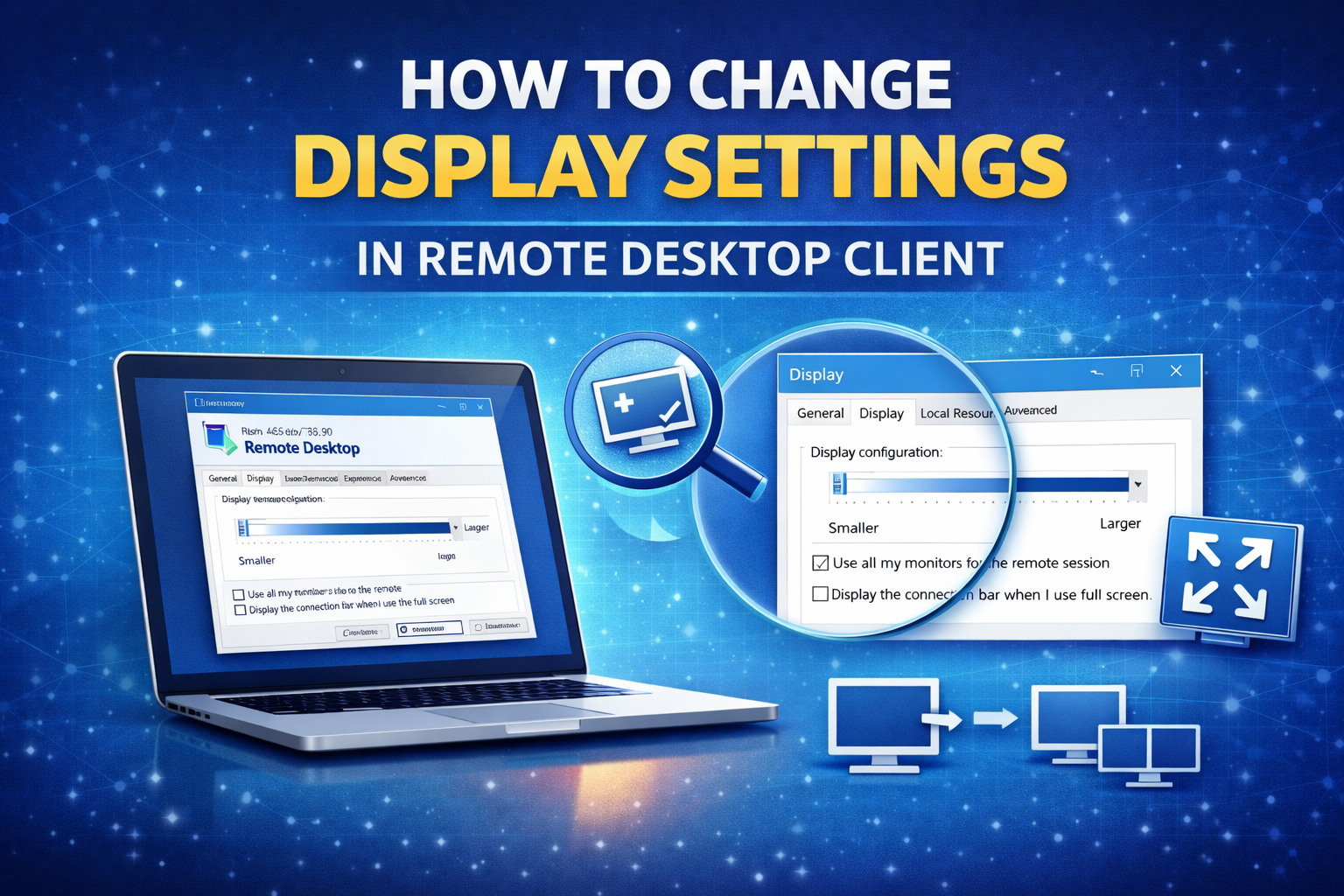
If you’re connecting to your Windows VPS using Remote Desktop (RDP), you may want to adjust the display resolution, enable multiple monitors, or switch to full screen mode. This guide will show you how to change display settings in the Remote Desktop Client.
Why Change Display Settings?
Adjusting display settings allows you to:
- Use full screen mode
- Set a custom resolution
- Use multiple monitors
- Improve performance on slower connections
Method 1: Change Display Settings Before Connecting
Step 1: Open Remote Desktop Connection
- Press Windows Key + R
- Type mstsc
- Press Enter
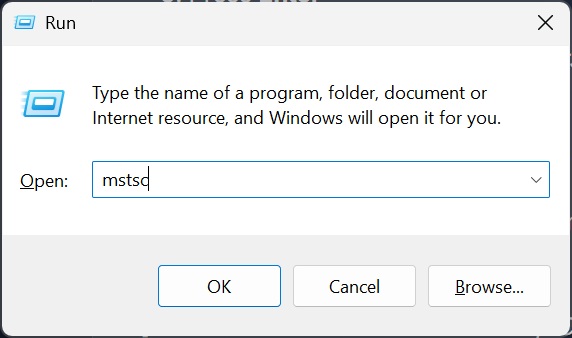
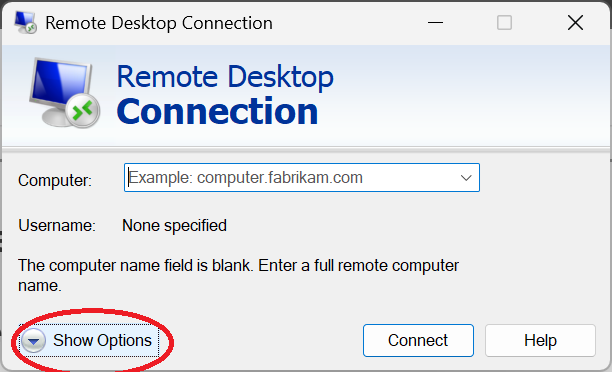
Step 2: Click “Show Options”
When the Remote Desktop window opens:
- Click Show Options (bottom left corner)
Step 3: Open the Display Tab
- Click the Display tab at the top
Here you can adjust:
- Display configuration slider (resolution)
- Use all my monitors for the remote session
- Display the connection bar when I use full screen
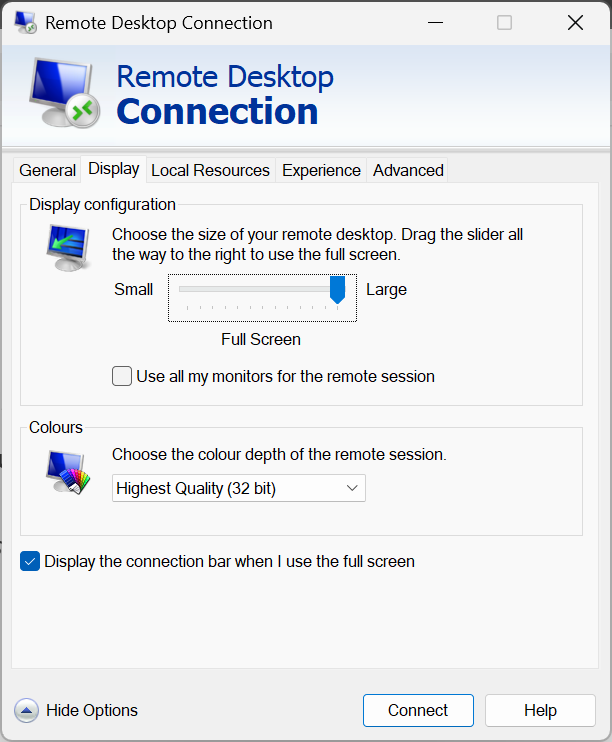
Step 4: Adjust Resolution
Move the slider to choose your preferred resolution:
- Left = Smaller window
- Right = Full screen resolution
For best experience, slide it all the way to the right for full screen.
Step 5: Click Connect
After adjusting your settings, click Connect.
Method 2: Enable Full Screen Mode During Session
If you’re already connected:
- Press Ctrl + Alt + Break to toggle full screen mode
This switches between windowed mode and full screen.
Method 3: Change Resolution Inside the VPS
You can also adjust resolution from inside the remote server:
Step 1:
- Right-click on the desktop
- Select Display settings
Step 2:
- Scroll to Display resolution
- Select your preferred resolution
- Click Keep changes
Optimize RDP Display for Better Performance
If your connection feels slow:
1. Open “Experience” Tab
- Open Remote Desktop
- Click Show Options
- Go to Experience tab
2. Adjust Performance Settings
- Select a lower connection speed (e.g., 10 Mbps)
- Uncheck:
- Desktop background
- Font smoothing
- Window animations
This improves responsiveness on low bandwidth connections.
Common Issues & Fixes
Display Looks Too Small?
- Increase resolution slider before connecting
- Use full screen mode
Black Bars on Screen?
- Match VPS resolution with your monitor resolution
Multi-Monitor Not Working?
- Make sure “Use all my monitors” is checked before connecting
You’re All Set 🎉
You now know how to customize your Remote Desktop display settings for the best experience. If you need assistance configuring your VPS, our support team is here to help.