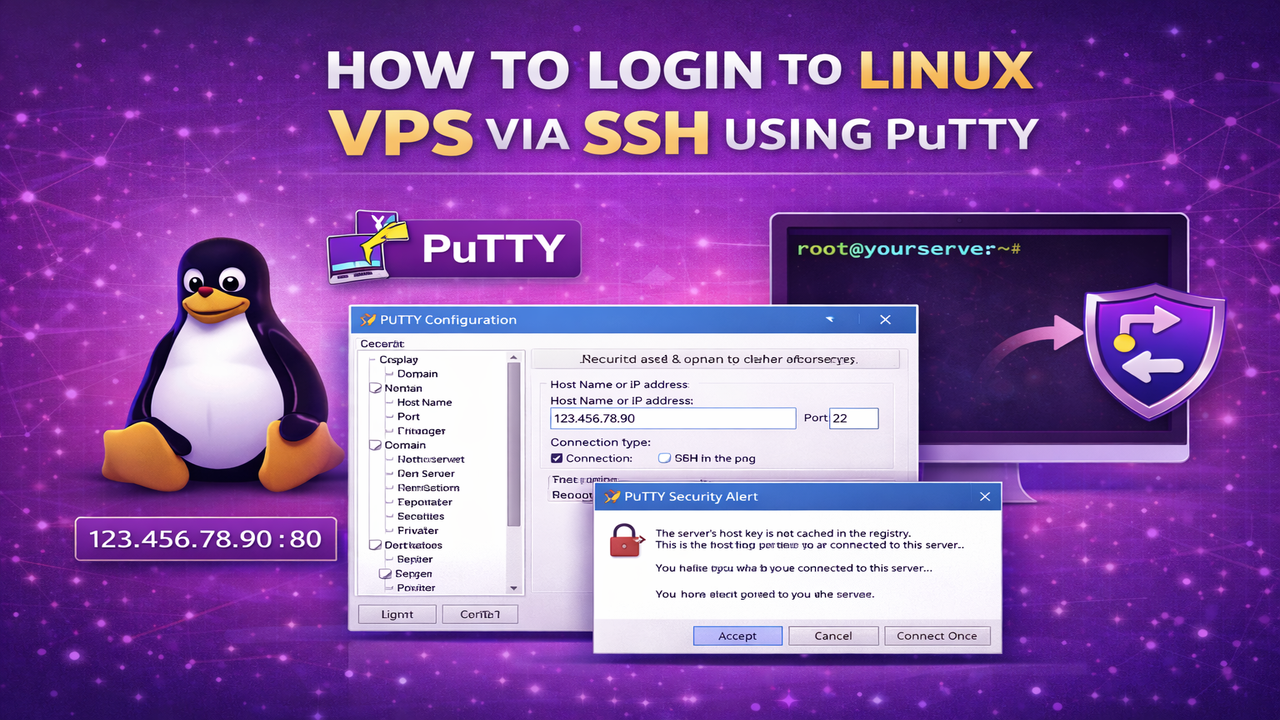
If you’ve purchased a Linux VPS, you can connect to it securely using SSH (Secure Shell). In this guide, we’ll show you how to log in to your Linux VPS using PuTTY from a Windows computer.
What You Need Before Connecting
Make sure you have the following details from your VPS welcome email:
- Server IP Address
- Username (usually
root) - Password or SSH Private Key
- Port Number (default SSH port is 22)
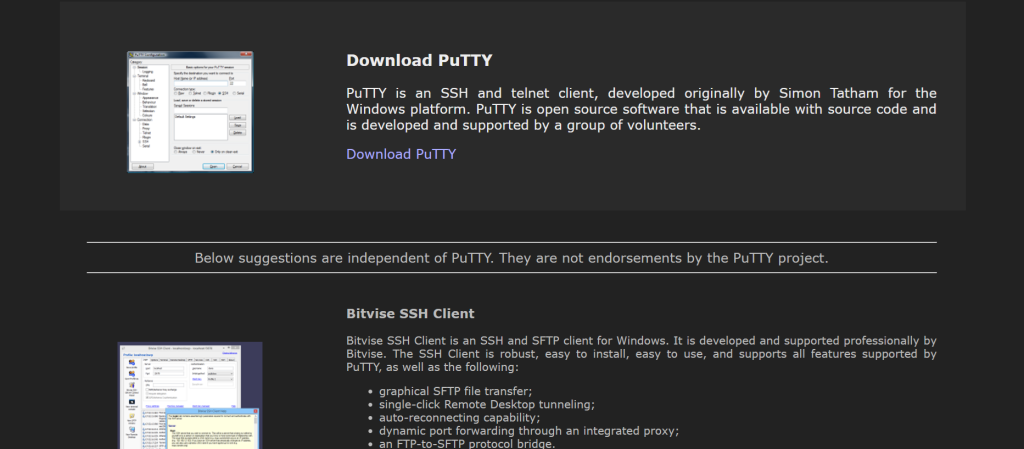
Step 1: Download PuTTY
- Go to the official PuTTY website https://putty.org/
- Download the latest Windows installer
- Install PuTTY on your computer
Step 2: Open PuTTY
After installation:
- Open PuTTY
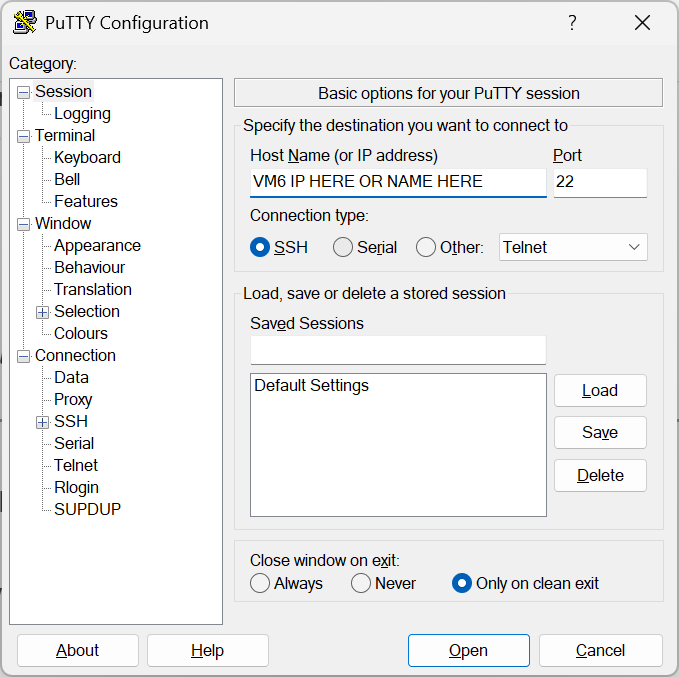
- You will see the “PuTTY Configuration” window
Step 3: Enter Your VPS Details
- Host Name (or IP address): Enter your VPS IP
- Port: 22 (unless your provider gave you a custom port)
- Connection type: Select SSH
Then click Open.
Step 4: Accept Security Alert
The first time you connect, PuTTY will show a security warning.
- Click Accept
This is normal for first-time connections.
Step 5: Login to Your Server
A black terminal window will open.
- Type your username (example: root)
- Press Enter
- Enter your password
- Press Enter
Note: When typing your password, nothing will appear on the screen. This is normal for security reasons.
If successful, you will see something like:
root@yourserver:~#
🎉 You are now logged into your Linux VPS.
How to Login Using an SSH Key (More Secure Method)
If your VPS uses SSH key authentication:
Step 1:
- In PuTTY, go to Connection → SSH → Auth
- Click Browse
- Select your
.ppkprivate key file
Step 2:
- Go back to Session
- Enter your VPS IP
- Click Open
Common SSH Issues & Fixes
Connection Timed Out?
- Check your IP address is correct
- Ensure your VPS is powered on
- Verify port 22 is open in your firewall
Access Denied?
- Double-check username
- Re-enter password carefully
- Ensure you’re using the correct SSH key
Network Error: Connection Refused?
- SSH service may not be running
- Firewall may be blocking port 22
Security Tips for Linux VPS
- Disable root login (recommended)
- Create a new sudo user
- Change the default SSH port
- Use SSH keys instead of passwords
- Install a firewall like UFW or CSF
You’re All Set 🚀
You now know how to connect to your Linux VPS using PuTTY via SSH. If you experience any issues, our support team is happy to assist.